
Material ECA Projects | Organizing and Collaborating

In This Article
This article describes Material ECA Projects:
- Organizing Components and Results
- Authorizing other Users to access your Material ECA Projects
Tiles representing the Projects you are authorized to access are displayed on the Project page. These are Projects you have created or those created by others and given you access. You can access the Components and Results of a Project by clicking the tile.
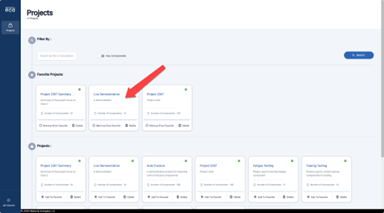
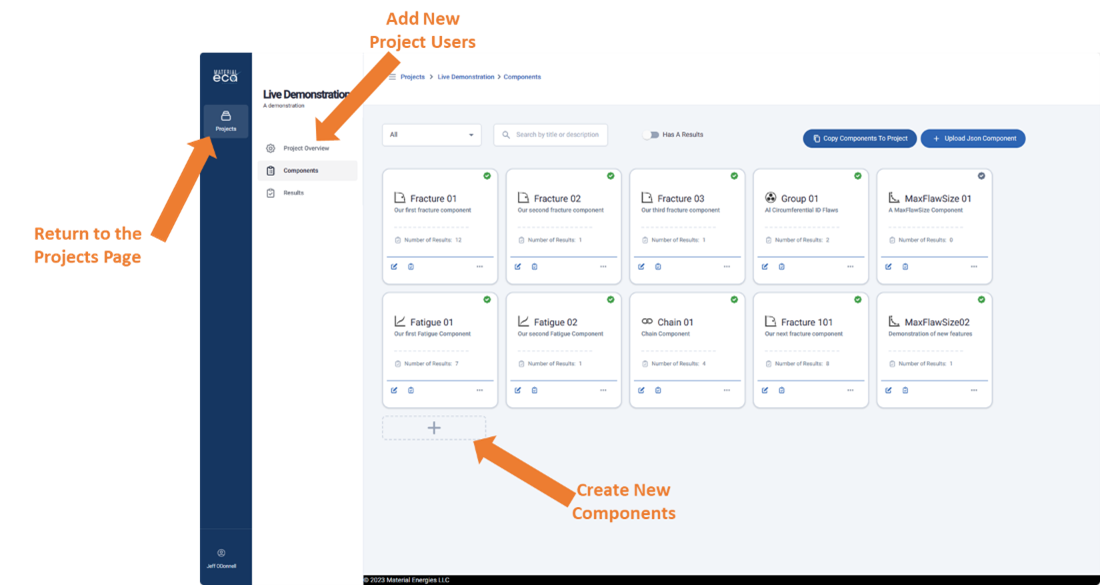
Each Project contains three pages: Project Overview, Components, and Results. When you open a Project, the Components page will be shown.
Components | Input Data for ECA Calculations
This page shows the Project’s Components as tiles, the input data for ECA calculations. From this page, new Components can be created, and existing Components can be accessed. In addition, Components can be duplicated, copied from other Projects, and imported from outside Material ECA.
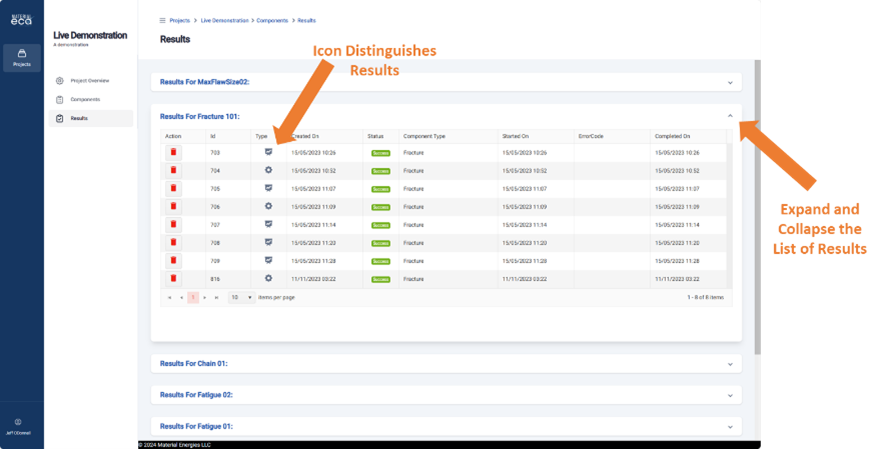
Project Results
On the menu on the left, selecting Results displays the Project Results page. Results are listed by Component, and clicking a result will display them. A gear icon is used to distinguish Solver results from detailed results.
Adding Other Users to a Project | Collaboration
Adding other Users to a Material ECA project provides multiple benefits, from facilitating teamwork and workflow visibility to independent reviews. Allowing others access to project work improves efficiency and quality by enabling real-time feedback, making periodic progress review meetings far more productive.
On the menu on the left, selecting Project Overview allows the User to add other Users to the project.
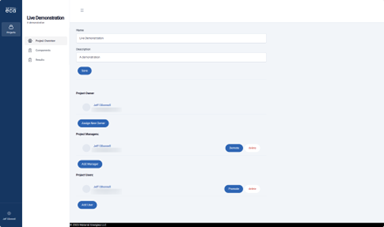
When a User creates a new project, he or she has three roles: the Project Owner, the Project Manager, and the Project User. There can be only one Project Owner, but there can be multiple Project Managers and Project Users. In general, the Project Owner owns all Components and Results in the Project. Only the Project Owner has the authorization to delete a Project and add new or remove Project Managers.
Project Managers can view, modify, run, and delete all Components and Results in a Project. Project Managers can also add or remove new Project Users.
Project Users can create and run new components and view, modify, run, and delete only the Components and Results they created. They can also view and duplicate components and results created by others.
In addition, Project Owners have the authority of Project Managers and Users, and Project Managers have the authority of Project Users.
Project Owner
- There can be only one Project Owner
- Owns the project data: Components and Results
- Can delete a Project
- Can reassign the role of Project Owner
- Can add and remove Project Managers and Users
- Has the abilities of a Project Manager
Project Manager
- Can create and run new Components
- Can view, modify, run, and delete all existing Components
- Can view and delete existing Results
- Can add and remove Project Users
- Has the abilities of a Project User
Project User
- Can create and run new Components
- Can view, modify, run, and delete Components and Results they created
- Can view and duplicate components made by others.
Next Article: Material ECA Component | Providing Tremendous Flexibility
Updated 31 March 2024